


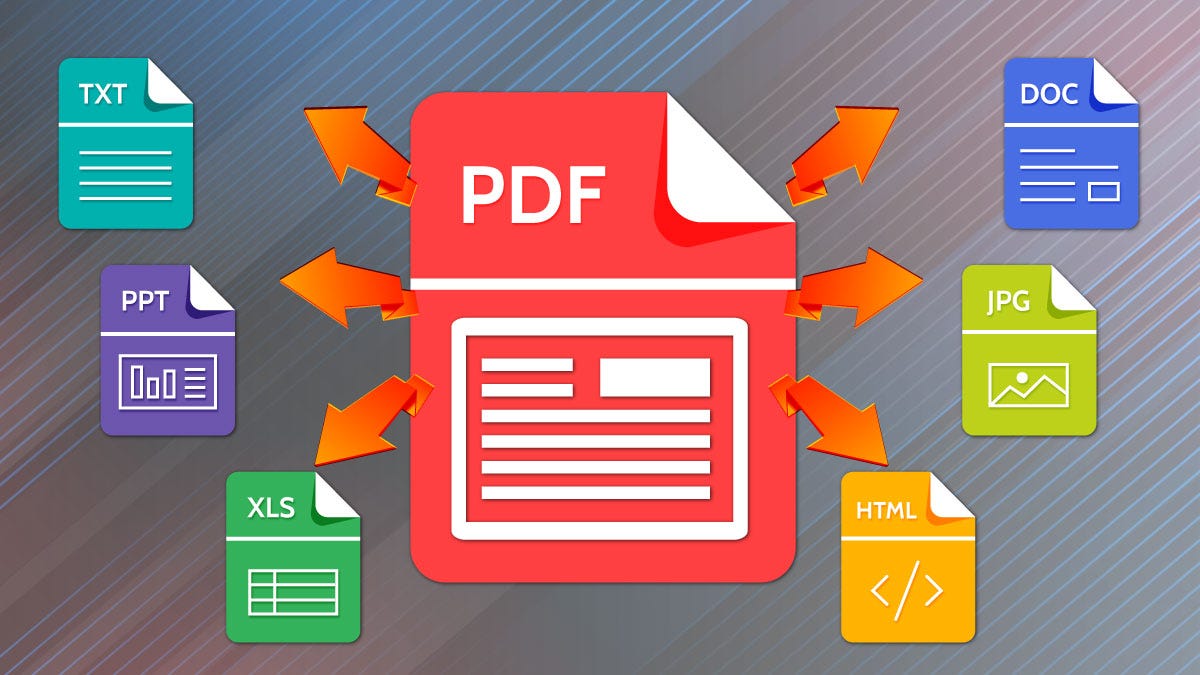
In today’s digital age, PDF (Portable Document Format) files are widely used in the business world, from distributing reports to sharing contracts. However, one common challenge is dealing with PDF files that are set to ‘read-only’ mode, which prevents editing. This can be frustrating if you need to make changes to a document. Fortunately, there are several methods to edit a read-only PDF, ensuring that you can update your documents as needed.
Understanding Read-Only PDFs
A read-only PDF is typically protected in one of two ways: either it is encrypted with a password that restricts editing, or it has been saved with settings that disable these features. Understanding the type of protection on your PDF is the first step towards editing it.
Method 1: Using Adobe Acrobat Pro
Adobe Acrobat Pro is the most straightforward tool for editing PDF files, including those marked as read-only. Here’s how you can use it:
- Open the Protected PDF: Launch Adobe Acrobat Pro and open the PDF file. If the document is password-protected, you will be prompted to enter the password.
- Unlock the Document: If you have the password, go to the ‘File’ menu, select ‘Properties’, then ‘Security’. Here you can change the security settings to remove the read-only status, provided you have the correct permissions.
- Edit the PDF: Once unlocked, you can edit the text, images, and other elements using the tools in Acrobat. After making your changes, save the file.
Method 2: Google Drive
For users who do not have access to Adobe Acrobat, Google Drive offers a simple alternative:
- Upload the PDF: Log in to your Google Drive account and upload the read-only PDF file.
- Open with Google Docs: Right-click on the file in Drive and select ‘Open with’ followed by ‘Google Docs’. This will convert the PDF into an editable Google Docs document.
- Edit and Re-export: Edit the document as needed in Google Docs. Once you’re done, you can download the document back to PDF format by going to ‘File’, then ‘Download’, and selecting ‘PDF Document’.

Method 3: PDF to Word Converters
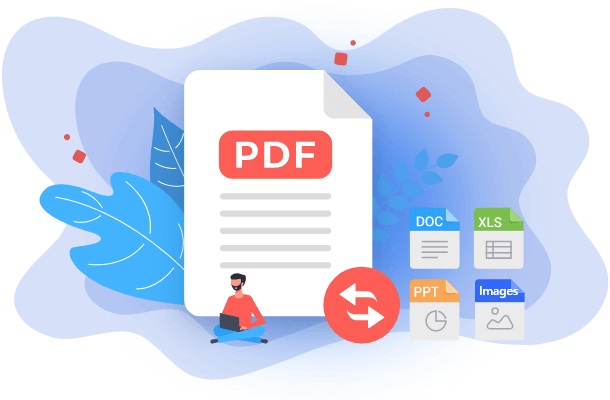
Another practical approach is to use a PDF to Word converter, which converts your PDF into an editable Word document. Many online tools offer this service for free or at minimal cost. Follow these steps:
- Choose a Converter: Select a reputable online PDF to Word converter. Examples include Smallpdf, ILovePDF, Foxit PDF Editor, or Adobe’s own online converter.
- Upload and Convert: Upload your PDF to the chosen platform. The tool will convert it to a Word document, which you can then download.
- Edit in Word: Open the converted file in Microsoft Word. Make any necessary edits. Once you’re done, you can save the document back to PDF format using Word’s ‘Save As’ feature and selecting ‘PDF’.
Method 4: Ask for the Original
Sometimes the simplest solution is to ask the sender for the original, editable document. This is particularly useful if the PDF was not meant to be read-only or if the original file might contain more editable features not present in the PDF version.
Tips for Managing Edited PDFs
- Maintain Document Integrity: When editing PDFs, try to maintain the original layout and formatting as much as possible to preserve the professional appearance of the document.
- Secure Sensitive Information: If you’re working with sensitive information, ensure that any online tools you use comply with your company’s data protection policies.
- Keep Track of Versions: Always save edited documents with a new filename that includes version numbers or editing dates to avoid confusion with the original file.